
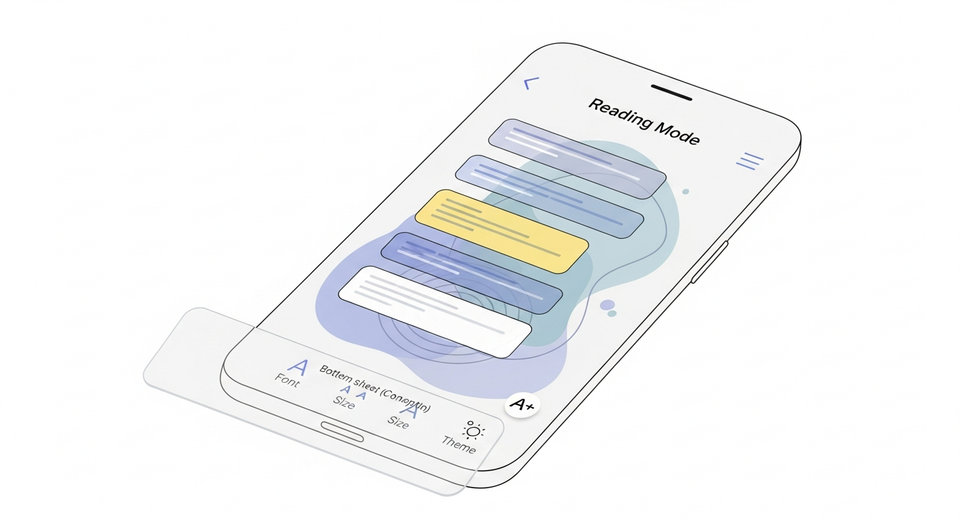
Google is refreshing Chrome for Android’s Reading mode with a redesigned interface and—more importantly—a simpler way to turn it on whenever you want. The update aims to make distraction-free reading more reliable by putting the toggle in a predictable place, while also giving the feature a more modern Material 3-style presentation.
What Chrome’s Reading mode is meant to do
Reading mode in Chrome is designed to strip away clutter from web pages—think ads, busy layouts, and extra navigation—so you can focus on the text. It also adds basic accessibility-style controls, such as changing the font and increasing text size, which can make long articles easier to consume on a phone.
Chrome on Android has offered Reading mode for years, but its usefulness has often depended on whether the browser decided a page “qualified” for the simplified view. That inconsistency is a big reason many users forget the feature exists in the first place.
The old experience: a shortcut that appeared only sometimes
Previously, Reading mode didn’t consistently show up on every article where a simplified layout would have been helpful. When the mode was available, Chrome displayed a large button beside the Omnibox (address bar) that later collapsed into a circular icon.
In other words, the old design had two common pain points:
- Unpredictable availability: Reading mode might appear on one article but not on another similar page.
- A UI cue that came and went: The address bar shortcut could be easy to miss, especially once it shrank.
What’s new: “Show Reading mode” moves into the three-dot menu
With the redesign now appearing on some devices, Chrome adds a new option called “Show Reading mode” inside the three-dot overflow menu. Notably, it sits under “Listen to this page”.
The key improvement is consistency: the “Show Reading mode” option appears in the overflow menu regardless of what page you’re viewing. That means users can attempt to activate Reading mode manually instead of waiting for Chrome to surface a contextual button only on certain pages.
There is a tradeoff, though. The change appears to remove the older address bar shortcut. Still, Chrome keeps a quick way to exit Reading mode once you’re in it, so the redesigned flow doesn’t trap you in the simplified view.
A redesigned interface that keeps the Omnibox visible
Another visible difference is how Reading mode presents the page. Instead of taking over the entire screen as it did before, the new view keeps the Omnibox present. For many users, this will make Reading mode feel like a natural extension of browsing rather than a separate, full-screen reader.
The customization controls are now organized into a bottom “Reading mode” sheet. The sheet leans into Material 3 Expressive styling, including container design and “shape morphing,” giving the feature a more modern look and clearer separation between content and controls.
Reading mode settings you can adjust
The redesigned sheet retains the same types of controls readers have relied on, including:
- Fonts: Sans serif, Serif, or Mono
- Text size: Up to 250%
- Background color: Light, Sepia, or Dark
These options matter for both comfort and accessibility. Larger text can reduce eye strain, a sepia background can be easier to read in warm lighting, and a dark theme may help in low-light environments—especially for longer sessions.
Preferences now follow you across pages
According to the report, Chrome preserves your Reading mode preferences as you move between different pages. So if you set a specific font, bump the text size up, and choose Sepia or Dark mode, those choices remain in place when you enable Reading mode on another article.
That continuity is a subtle but meaningful quality-of-life improvement. It turns Reading mode into a personalized reading environment instead of a one-off tool you have to reconfigure each time.
Why manual activation is a big deal
The standout change in this update is that manual activation is now front and center. In practice, that can help in several common scenarios:
- Pages that “should” qualify but don’t: Some articles have heavy formatting or embedded elements that might have prevented Reading mode from appearing in the past.
- Users who want a consistent workflow: Having a stable menu item means you can build a habit around it: open article → menu → Reading mode.
- Accessibility and comfort: Users who routinely increase text size up to 250% or prefer specific fonts don’t have to rely on Chrome’s detection to access those features.
Availability: seen on Chrome 143 stable, but not widely rolled out
The redesigned Reading mode is not yet broadly available. It has been spotted on two Android devices running Chrome 143 on the stable channel, but the rollout does not appear to be widespread at this time.
Because this looks like a staged release, some users on the same Chrome version may not see the new “Show Reading mode” menu item immediately.
How to try it early using Chrome flags
For users who like testing features before they launch to everyone, Chrome includes experimental settings known as “flags.” The report notes there are multiple “Reader Mode” flags, including:
- chrome://flags/#reader-mode-improvements
Flags can change or disappear over time, and enabling them may cause unexpected behavior. Still, they’re often the quickest way to preview UI redesigns like this one ahead of a full rollout.
Conclusion
Chrome for Android’s Reading mode redesign focuses on two things users have wanted for years: more reliable access and a cleaner, more modern interface. With a persistent “Show Reading mode” option in the menu, a Material 3-style bottom sheet, and preferences that carry across pages, the update could make Reading mode a feature people actually use daily—once it reaches more devices.
This article is based on reporting originally published by 9to5google.com.
<<>>
Related Articles
- MAI-UI: Alibaba Tongyi Lab’s Foundation GUI Agents Push State of the Art in Android Navigation and Grounding
- Friendship Apps Are Booming: 222, BFF, Meetup, Meet5, and More Promise Easier Ways to Make New Friends
- Inside Access Now’s Digital Security Helpline: The 24/7 Team Investigating Government Spyware Hacks
Based on reporting originally published by 9to5google.com. See the sources section below.